



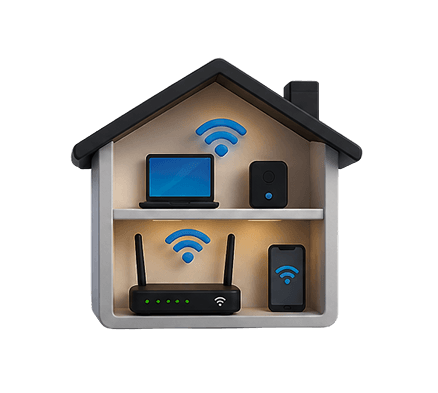
Setting up a home network may sound technical, but the basic process is easier to understand once you know what each device does. Your modem connects your home to your internet service provider, while your router distributes that connection to phones, computers, televisions, smart devices, and other equipment.
A properly configured network does more than putting your devices online. It can improve Wi-Fi coverage, reduce interruptions, protect personal information, and make it easier to identify problems when your connection slows down.
What Is a Home Network?
A home network is a group of devices connected to one another and, usually, to the internet. These devices may include:
- Smartphones
- Laptops and desktop computers
- Smart televisions
- Game consoles
- Printers
- Security cameras
- Smart speakers
- Thermostats
- Home automation equipment
Devices can connect through an Ethernet cable or wirelessly through Wi-Fi. The router manages communication between these devices and directs internet traffic to the correct destination.
A home network and an internet connection are related, but they are not the same thing. Your internet service connects your home to the wider internet. Your home network distributes that connection within your property.
This distinction matters when troubleshooting. Your internet service may be working correctly while poor router placement or Wi-Fi interference causes slow performance inside your home.
Related guide: Learn how fiber, cable, DSL, satellite, fixed wireless, and 5G deliver service in our guide to Understanding Internet Connection Types.
The Main Parts of a Home Network
Before connecting equipment, it helps to understand the role of each component.
Modem
A modem connects your home to your internet service provider's network. Depending on your connection type, it may connect to a coaxial cable, telephone line, fiber terminal, fixed-wireless receiver, or another service-specific connection.
The modem receives the external internet signal and makes it available to your router or a directly connected device.
A modem usually has:
- A power connection
- An incoming service port
- One or more Ethernet ports
- Status lights showing power, connection, and activity
Router
A router distributes internet connection to devices throughout your home. It creates your local network, assigns devices to local addresses, and directs data between them.
Most home routers provide both:
- Ethernet ports for wired connections
- Wi-Fi for wireless connections
The router also commonly includes security features such as network encryption, a firewall, guest access, parental controls, and device management.
Gateway
A gateway combines modem and router functions in one unit. Internet providers often supply gateways because they require fewer cables and are easier for customers to install.
A combined gateway may be convenient, but separate equipment can provide greater flexibility. For example, a separate router can be upgraded without replacing the modem.
Ethernet Cables
Ethernet cables connect devices directly to the router or gateway. Wired connections are generally more consistent than Wi-Fi because they are less affected by distance, walls, and wireless interference.
Ethernet is particularly useful for:
- Desktop computers
- Game consoles
- Smart televisions
- Workstations
- Network storage
- Mesh Wi-Fi access points using wired backhaul
Wi-Fi
Wi-Fi allows devices to join the home network without a physical cable. Its performance depends on router placement, distance, building materials, interference, hardware capability, and the Wi-Fi standard supported by both the router and connected device.
Simple Home-Network Layout
A basic network normally follows this path:
Internet service → modem or gateway → router → wired and wireless devices
When a separate modem and router are used, an Ethernet cable connects the modem network port to the router's internet or WAN port.
How to Set Up a Home Network
Equipment and activation procedures vary by provider, but the following process applies to many residential setups.
Step 1: Confirm Your Equipment
Before starting, identify whether you have:
- A separate modem and router
- A combined modem-router gateway
- A fiber optical network terminal and router
- A fixed-wireless or satellite receiver with indoor equipment
Check that you also have:
- Power adapters
- The correct service cable
- At least one Ethernet cable
- Provider activation details
- The router's default network name and login information
These details may appear on a label attached to the device.
Step 2: Connect the Modem or Gateway
Connect the incoming service cable to the appropriate port on the modem or gateway. Then connect to the power adapter and switch on the equipment.
Allow several minutes for the device to establish a connection. Status lights may blink during startup.
The exact light labels vary, but commonly include:
- Power
- Downstream or receive
- Upstream or send
- Online or internet
- Ethernet
- Wi-Fi
Wait until the power and internet-related indicators appear stable according to the manufacturer's instructions.
Step 3: Connect the Router
Skip this step when using a combined gateway.
Use an Ethernet cable to connect the modem's Ethernet port to the router's WAN, Internet, or similarly labelled port. Connect the router to power and allow it to start.
When changing equipment, you may need to restart the modem before it recognizes the new router.
Step 4: Connect to the Router
You can usually connect using:
- The default Wi-Fi name and password printed on the router
- An Ethernet cable connected to a LAN port
- The manufacturer's mobile application
Once connected, open the router's management interface or application.
Step 5: Change the Network Name and Password
Replace the default Wi-Fi name with a recognizable but non-personal name. Avoid including your full name, address, apartment number, or other identifying details.
Create a strong Wi-Fi password that is:
- Long
- Unique
- Difficult to guess
- Different from passwords used elsewhere
You should also change the router's administrative password. The Wi-Fi password controls who can join the network, while the administrative password controls who can change router settings.
Step 6: Configure Security
Use the strongest security option supported by your router and devices. WPA3 is preferred where available, while WPA2 remains appropriate for older compatible devices. Avoid obsolete options such as WEP.
The Cybersecurity and Infrastructure Security Agency recommend changing default credentials, using strong wireless encryption, updating router software, and disabling features that are not required.
Also check whether your router includes:
- Automatic firmware updates
- A built-in firewall
- Guest networking
- Device access controls
- Remote administration
Keep the firewall enabled. Disable remote administration unless you specifically need it and understand how it is secured.
Step 7: Update the Router
Install available firmware updates before connecting all your devices. Router firmware contains the software that controls the equipment, and updates may improve security, stability, compatibility, and performance.
Enable automatic updates when the manufacturer provides that option.
Step 8: Connect Your Devices
Connect fixed devices through Ethernet where practical and use Wi-Fi for mobile or less accessible devices.
After connecting each device, check that it can:
- Join the network
- Reach websites or online services
- Maintain a stable connection
- Receive an appropriate signal in its normal location
Connect devices gradually. This makes it easier to identify a problematic device or configuration.
Where Should You Place Your Router?
Router placement can have a major effect on Wi-Fi performance. A powerful internet plan cannot fully compensate for a poorly positioned router.
The FCC advises placing a router in a central location to improve coverage and considering extenders or mesh equipment where one router cannot adequately cover the home.
For better results, place the router:
- Near the centre of the home
- In an open area
- Above floor level
- Away from thick walls and large metal objects
- Away from enclosed cabinets
- Away from appliances that may create interference
Avoid placing it:
- On the floor
- Inside a cupboard
- Behind a television
- In a basement corner
- Beside a microwave
- Near large mirrors, aquariums, or metal shelving
Wi-Fi signals spread outward from the router. Central placement reduces the distance and number of obstacles between the router and connected devices.
Understanding Wi-Fi Bands
Many routers support more than one frequency band.
2.4 GHz
The 2.4 GHz band generally provides:
- Longer range
- Better wall penetration
- Lower maximum performance
- Greater exposure to interference
It can be useful for smart-home devices and equipment located farther from the router.
5 GHz
The 5 GHz band generally provides:
- Higher performance
- Lower interference
- Shorter effective range
- Weaker penetration through some walls
It is often suitable for laptops, televisions, consoles, and phones located reasonably close to the router.
6 GHz
Some newer routers and devices support the 6 GHz band. It can provide additional capacity and cleaner channels, but it normally has a shorter range and requires compatible equipment.
Many modern routers automatically guide devices between bands. Others provide separate network names for each one.
Ethernet or Wi-Fi: Which Should You Use?
Neither connection method is universally better. The right choice depends on the device and how it is used.
| Connection | Main advantage | Main limitation | Best suited for |
|---|---|---|---|
| Ethernet | Stability and consistent performance | Requires cabling | Gaming, workstations, TVs and desktop computers |
| Wi-Fi | Convenience and mobility | Affected by distance and interference | Phones, tablets, laptops and smart-home devices |
Use Ethernet for devices that remain in one place and benefit from a stable connection. Use Wi-Fi where mobility or cabling limitations matter more.
How to Improve Wi-Fi Coverage
If some rooms have weak service, begin with router placement before buying additional equipment.
Try these steps:
- Move the router to a more central and elevated location.
- Remove nearby physical obstructions.
- Restart the router.
- Install firmware updates.
- Test both 2.4 GHz and 5 GHz bands.
- Reduce unnecessary connected devices.
- Use Ethernet for stationary, bandwidth-intensive devices.
- Consider mesh Wi-Fi or an additional access point for a larger home.
Mesh Wi-Fi
A mesh system uses multiple coordinated access points to provide coverage across a larger area. Devices can move between mesh units while remaining on the same network.
Mesh can be useful in:
- Multi-story homes
- Long or irregularly shaped properties
- Buildings with thick internal walls
- Homes with persistent dead zones
Wi-Fi Extenders
An extender repeats the existing wireless signal. It can help in a limited area, but performance may be lower than a well-designed mesh system or wired access point.
Place an extender where it still receives a strong signal—not inside the dead zone itself.
How to Secure Your Home Network
Network security should be part of the initial setup rather than an optional later step.
Use this checklist:
- Change default router credentials.
- Use WPA3 or WPA2 encryption.
- Create a unique Wi-Fi password.
- Enable automatic firmware updates.
- Keep the router firewall active.
- Disable WPS when it is not needed.
- Disable remote administration unless necessary.
- Create a guest network for visitors.
- Review connected devices regularly.
- Remove devices you do not recognize.
- Replace unsupported equipment that no longer receives security updates.
CISA also advises restricting network access and using the strongest encryption available.
Should Smart Devices Use a Guest Network?
Connecting smart-home and Internet of Things devices to a separate guest or isolated network can reduce their access to computers and personal files on your main network.
This can be especially useful for:
- Smart plugs
- Cameras
- Doorbells
- Speakers
- Televisions
- Appliances
The available isolation settings vary by router, so check the manufacturer's documentation.
How to Test Your Network
After setup, test both the internet connection and Wi-Fi coverage.
Run a Wired Speed Test
Connect a computer directly to the router with Ethernet and run a speed test. This gives you a useful baseline because it removes most Wi-Fi-related variables.
Compare the result with the expected performance of your internet plan, while remembering that advertised speeds may not be achieved at every moment.
See our guide on How to Read Your Internet Speed Test Results for an explanation of download speed, upload speed, ping, and jitter.
Test Wi-Fi in Different Rooms
Run the same test:
- Near the router
- In commonly used rooms
- On each floor
- In known weak-signal areas
Record the results so you can compare signal quality and performance.
A large difference between wired and wireless tests usually points toward a home-network or Wi-Fi issue rather than the external internet connection.
Basic Home Network Troubleshooting
When something stops working, troubleshoot in a logical order.
No Devices Can Access the Internet
Check whether:
- The modem and router have power
- The service cable is secure
- The modem shows an online connection
- The cable between modem and router is connected correctly
- Your provider has reported an outage
Restart the modem and router:
- Disconnect power from both devices.
- Wait about 30 seconds.
- Reconnect the modem first.
- Wait until it establishes service.
- Reconnect the router.
- Allow the network to restart fully.
One Device Cannot Connect
When other devices work normally, the issue is probably limited to that device.
Try:
- Turning Wi-Fi off and on
- Forgetting and rejoining the network
- Restarting the device
- Checking that airplane mode is off
- Installing system and network-driver updates
- Testing the device closer to the router
Wi-Fi Is Slow but Ethernet Is Fast
This usually indicates a wireless issue.
Possible causes include:
- Poor router placement
- Signal interference
- Excessive distance
- An overcrowded Wi-Fi channel
- Older router hardware
- A device connected to an unsuitable band
Connection Drops Frequently
Check for:
- Loose cables
- Overheating equipment
- Outdated firmware
- Electrical or power problems
- Signal interference
- Provider line instability
Document when the drops occur. A consistent pattern—such as interruptions every evening—may indicate congestion or a recurring environmental factor.
Some Rooms Have No Signal
First move the router to a central position. If the weak areas remain, consider:
- A mesh system
- A wired access point
- A carefully placed extender
- Ethernet for fixed devices in those rooms
Common Home-Network Mistakes
Hiding the Router
Placing a router inside furniture may improve the room's appearance, but it can weaken Wi-Fi coverage and restrict ventilation.
Keeping Default Passwords
Default credentials may be widely known or easy to find. Change both the Wi-Fi and administrative passwords.
Assuming More Speed Fixes Every Problem
Upgrading your internet plan will not necessarily resolve poor router placement, weak Wi-Fi coverage, outdated equipment, or interference.
Using One Speed Test as Final Proof
Network performance changes. Run several tests at different times and compare wired and wireless results.
Ignoring Firmware Updates
Older firmware may contain security weaknesses or performance problems that have already been corrected by the manufacturer.
Frequently Asked Questions
Do I need both a modem and a router?
Most homes need both functions. You may have two separate devices or one combined gateway supplied by your provider. The modem connects to the internet service, while the router shares that connection with your devices.
Can I set up a home Wi-Fi without a modem?
You can create a local Wi-Fi network with a router, but you normally need a modem, gateway, fiber terminal, or other service equipment to connect that network to the internet.
Where is the best place for a Wi-Fi router?
Place it centrally, above floor level, and in an open area away from thick walls, metal objects, enclosed cabinets, and sources of interference.
Is the Ethernet faster than Wi-Fi?
The Ethernet is usually more stable and may provide more consistent performance. Actual speed depends on the router, device, cable, internet plan, and Wi-Fi standard.
Should I turn off my router at night?
It is generally unnecessary. Routers are designed for continuous operation and may install updates during low-use periods. Turning it off temporarily can still be useful during troubleshooting.
How often should I replace my router?
There is no fixed replacement schedule. Consider upgrading when the manufacturer stops providing security updates; the hardware cannot support your plan or devices, or coverage and reliability remain inadequate after troubleshooting.
What should I do when an unknown device appears on my network?
Disconnect or block the device, change your Wi-Fi password, review router security settings, update the firmware, and reconnect only recognized devices.


Continue Building a Better Home Internet Experience
A reliable home network begins with the correct setup, but long-term performance also depends on security, equipment placement, connection technology, and how your household uses the internet.
Explore the next Internet Hunters guides to understand your connection more clearly and solve common performance problems without unnecessary technical jargon.
Explore Related Guides

