



Internet Hunters is not affiliated with any internet provider mentioned in this article. Our information is independent, unbiased, and research-based, but prices and availability change, so confirm details with the provider before signing up.
You upgraded from 300 Mbps to a gig. Your video call still freezes in the back bedroom.
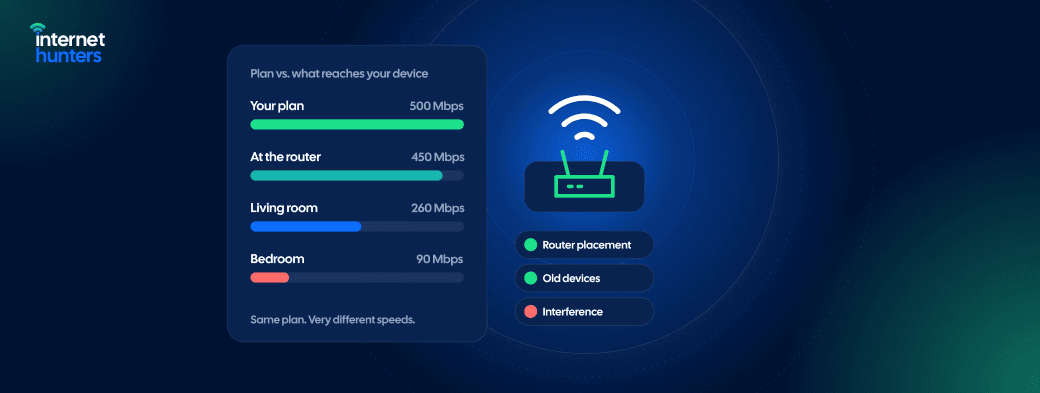
You’re not imagining it, and you’re not alone. When Ookla compared Wi-Fi and wired speed tests in 2023, Wi-Fi in US homes delivered on average just 42% of the speed of a wired connection. That was the best result of the countries studied, and it still meant losing more than half the speed people were paying for.
A faster plan pours more water into the pipe. If the leak is in your Wi-Fi, more water won’t help. This guide shows you how to find where your speed is actually going, in about 10 minutes, and what to fix first.
Test First: The Three-Spot Speed Test
Before you change anything, run three speed tests:
- Wired, at the router. Plug a laptop into the router with an Ethernet cable.
- Wi-Fi, next to the router. Same laptop, cable unplugged, within a few feet.
- Wi-Fi, where you actually use it. The couch, the desk, the bedroom.
If you can, run the set twice: once in the morning and once around 8 p.m. Then match your results to this table:
| Wired at Router | Wi-Fi Next to Router | Wi-Fi Where You Sit | What it Points To |
|---|---|---|---|
| Slow | Slow | Slow | A problem before your Wi-Fi: the plan, the modem or the provider |
| Fast | Slow | Slow | Your router’s settings, or the device you’re testing with |
| Fast | Fast | Slow | Coverage: distance, walls or interference |
| Fast | Fast | Fast, but calls and games lag | Lag under load, a problem speed tests often miss |
The sections below take each result in turn. How to Run and Interpret a Speed Test explains every number on the results screen.
Cause 1: Your Device Can’t Keep Up
Sometimes the slow part is the phone or laptop, not the network. Older devices use older Wi-Fi standards that top out far below modern plans. They’re still common: in Ookla’s 2023 data, the older Wi-Fi 4 and Wi-Fi 5 standards made up 89% of speed tests worldwide.
How to Check: run the test next to the router on two devices, ideally one older and one newer. If the newer one is much faster, your network is fine, and the old device is the limit.
A few other device-side speed drains worth ruling out:
- A VPN, which routes your traffic through another server and usually slows it
- Background downloads, such as system updates, game patches and photo backups
- Laptop battery-saver modes, which can throttle the Wi-Fi card
Cause 2: Crowded Airwaves, Especially in Apartments
Your Wi-Fi shares the air with every network nearby. In an apartment building, that can be dozens.
The 2.4 GHz band is the worst for this. In the US, only three of its channels, 1, 6 and 11, don’t overlap, so in dense buildings each one is usually shared by many networks. If all three are busy, pick the least crowded of 1, 6 and 11 and test, rather than a channel in between.
The 5 GHz band has more than 20 non-overlapping channels in most places, so moving your devices there usually helps immediately. Its trade-off is range: it doesn’t go through walls as well.
How to check: install a free Wi-Fi analyzer app on your phone. It shows every nearby network and the channel it uses. If yours sits on the same channel as ten neighbors, you’ve found your problem.
Cause 3: Router Settings Worth Checking
Most routers work out of the box, but a few settings quietly cap your speed. Log in to your router’s admin page or app and check these:
- Firmware: install any available update, and turn on automatic updates if your router offers them.
- Security mode: choose WPA3, or WPA2 with AES. Older “WPA” or “TKIP” settings can force modern devices down to old, slow Wi-Fi speeds.
- Wireless mode: avoid “legacy” or b/g-only modes. Choose the router’s newest mode, or “auto.”
- Channel width on 2.4 GHz: set it to 20 MHz. Wider settings on this crowded band cause interference, not speed.
- One network name or two: many routers combine 2.4 and 5 GHz under one name and choose for you. If a device keeps clinging to the slower band, give the bands separate names for a day and test each one.
- Quality of service: if your router offers “smart queue” or “adaptive QoS,” read the next section before you turn it on.
Write down each change before you make it, so you can undo it if something gets worse.
Cause 4: Lag Under Load, the Problem Speed Tests Miss
Here’s a frustrating one: your speed test looks great but calls stutter and games lag whenever someone else in the house is streaming or downloading.
The usual culprit is bufferbloat: your router or modem queues up too much data when the connection is busy, and everything waits in line behind it. A standard speed test often won’t catch it, because it measures top speed in ideal conditions, not lag under load.
How to Check: run the free Waveform bufferbloat test, ideally on a wired connection with nothing else running. It measures your lag while it loads the connection in both directions, then gives you a letter grade.
How to Fix It: look for a setting called smart queue management (SQM), smart queue or adaptive QoS. It manages the queue so time-sensitive traffic doesn’t get stuck. Two caveats:
- Many provider-supplied routers don’t offer SQM at all.
- SQM works the router’s processor hard and can trim your top speed slightly. If your grade is already good, leave it off.
And don’t expect a bigger plan to help. Bufferbloat is a router problem, not a bandwidth problem, and a faster plan can even make it worse by giving the router more to queue.
Cause 5: The Cable You Forgot About
If your wired test stalls at around 94 to 99 Mbps no matter what plan you pay for, look at the cable. Older Cat5 Ethernet cables max out at 100 Mbps, while Cat5e and Cat6 handle 1 Gbps.
Older cables look almost identical to newer ones, so read the category printed on the cable’s jacket. And remember that a connection is only as fast as its slowest link: one old cable between your router and a switch can cap everything downstream. Homes wired for Ethernet before the mid-2000s may have Cat5 inside the walls.
A damaged cable, or an old router or switch with 100 Mbps ports, can cause the same ceiling.
Cause 6: Sometimes It Really is the Connection
If your wired test at the router is slow too, the problem is upstream of your Wi-Fi. Restart the modem, check your provider’s outage page, and run the wired test again at a few different times of day.
If it stays slow, call your provider with your results in hand: the times, the wired speeds and the plan you pay for. Ask for a line check, and ask them to replace their equipment if it’s more than a few years old. Internet Down? What to Check First covers the full troubleshooting order.
When Mesh Wi-Fi is the Fix, and When It Isn’t
Mesh Wi-Fi fixes one specific problem: coverage. If your three-spot test showed fast speeds next to the router and slow speeds farther away, mesh is a strong candidate.
It won’t fix a slow device, a crowded channel shared with your neighbors, bufferbloat, an old cable, or a slow connection from your provider. Diagnose first, then buy. Wi-Fi Coverage: Router Placement, Extenders and Mesh helps you choose the right setup for your home.
When a Faster Plan Does Make Sense
Upgrade your plan only when the problem is the plan itself:
- Your wired test at the router comes close to what you pay for, and your household still runs out of speed at busy times.
- Your upload speed can’t keep up with video calls, live streaming or cloud backups, and your provider offers a plan with more upload.
How Much Internet Speed Do You Need? helps you work out the right tier before you call.
Diagnose First, Then Let Internet Hunters Help with the Rest
Most people pay for speed they never see because nobody showed them where it was getting lost. Internet Hunters exist to change that.
We write independent, plain-English guides for real homes: crowded apartment buildings, old rental wiring, households where everyone is online at once. We don’t sell upgrades, so we’ll never tell you to buy a faster plan when a free setting will do.
Frequently Asked Questions
Why is My Wi-Fi low but my phone’s mobile data is fast?
Your phone’s data skips your router entirely. If mobile data is fast and Wi-Fi is slow in the same spot, the problem is usually Wi-Fi coverage, router settings or a crowded channel.
Why does my Wi-Fi slow down at night?
Evenings are when the most people in your home and building are online. That means more competition for your Wi-Fi channel, and often more congestion on your provider’s network. Test wired at night to see which one it is.
Why is my Wi-Fi slow on only one device?
That device is the likely limit. Check for an older Wi-Fi standard, a VPN, background updates or a power-saving mode, then forget the network and reconnect.
Why does my wired speed test stop at about 95 Mbps?
Something in the chain is limited to 100 Mbps. That’s usually an old Cat5 cable, but it can also be a damaged cable or an old router or switch port.
Can my neighbors slow down my Wi-Fi?
Yes. Nearby networks on the same channel compete for airtime, especially on the 2.4 GHz band. Switch to the least crowded channel or move your devices to 5 GHz.
Will a new router make my internet faster?
It can, if your current router is old, missing modern Wi-Fi standards or unable to handle lag under load. It won’t speed up the connection coming from your provider.


