



Internet Hunters is not affiliated with any internet provider mentioned in this article. Our information is independent, unbiased, and research-based, but prices and availability change, so confirm details with the provider before signing up.
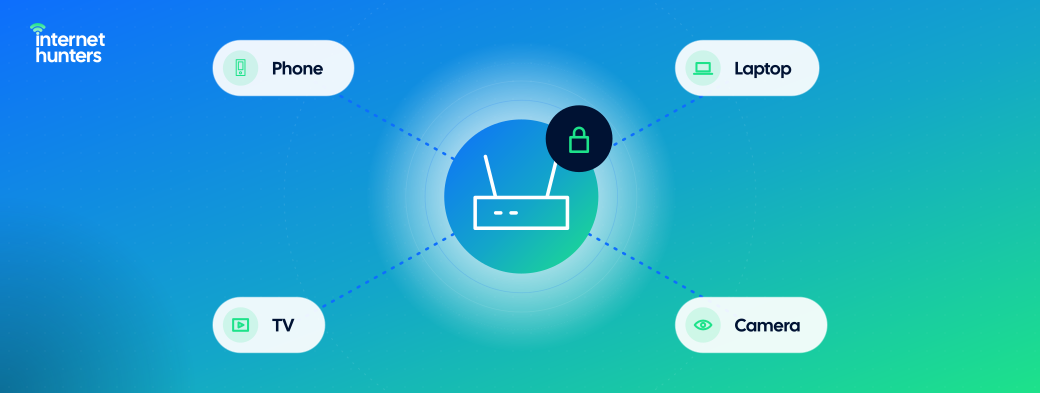
Your router connects every device in your home to the internet. If it’s poorly protected, strangers can use your connection, reach your devices, or quietly take over the router itself. Most of the important protections take a few minutes to set up and don’t require new equipment.
This guide covers the settings that matter most, how to tell when a router is too old to trust, and how to keep guests and smart devices separate from your main network.
Why Home Wi-Fi Security Matters
An unsecured network can lead to:
- Unwanted Users: Neighbors or passersby using your bandwidth.
- Access to Your Devices: Shared files, cameras, and smart devices exposed to others.
- Router Takeover: Attackers changing settings or using your connection for their own activity.
- Weak Links: Smart devices with poor security create a way into your network.
1. Change the Router’s Admin Password
Your home network usually has two passwords that matter: the Wi-Fi password used to join the network, and the admin password used to change router settings. You should change both. Many people never do it. A Broadband Genie survey found that more than 86% of respondents had never changed their router’s admin password.
Log in through your router’s app or settings page and replace the default admin password with a long, unique one.
2. Use WPA3 or WPA2 Encryption
In your router’s wireless security settings, choose WPA3 encryption. If it’s not available, use WPA2. If your router supports, consider replacing it. Never leave your network open or use the outdated WEP setting. Some routers offer a mixed WPA2/WPA3 mode, so older devices can still connect.
3. Set a Strong Wi-Fi Password and Rename the Network
Use a long passphrase rather than a short, complex password. Change the default network name (SSID). Avoid using your name, address or apartment number, which is especially worth doing in shared buildings. Hiding the network name doesn’t add real security, so don’t rely on it.
4. Keep Firmware Updated
Router software updates fix security flaws. Turn on automatic updates if your router offers them, or check for updates every few months. Gateways rented from a provider are usually updated by the provider, but it’s worth confirming.
5. Replace Routers That No Longer Get Updates
When a manufacturer stops supporting a router, security flaws stop being fixed. The FBI has warned that routers made in 2010 or earlier are especially vulnerable, particularly when remote administration is turned on. Warning signs it lists include overheating, unexpected settings changes and patchy connectivity. Check your router’s model on the manufacturer’s support site. If it’s listed as end-of-life, plan to replace it.
6. Turn Off Features You Don’t Use
- Remote Management: Lets someone change router settings from outside your home. Turn it off unless you need it.
- WPS: The push-button connection feature can be a weak point on some routers.
- UPnP: Security guidance recommends disabling Universal Plug and Play once your smart home devices are set up.
7. Put Guests and Smart Devices on a Separate Network
A guest network gives visitors internet access without access to your computers and phones. Many households also put smart TVs, cameras and plugs on the guest network. Check the settings, because some routers let devices on the guest network reach your main home network. Look for an option that isolates guest devices.
8. Review Connected Devices
Your router’s app or settings page lists the devices connected to your network. Check it occasionally. If you see something you don’t recognize, change your Wi-Fi password and reconnect your own devices.
Settings Checklist
| Setting | Where to Find It | Recommended Choice |
|---|---|---|
| Admin password | Administration or system settings | Long, unique, not the default |
| Wi-Fi security | Wireless security settings | WPA3, or WPA2 if needed |
| Network name | Wireless settings | No personal details |
| Firmware | Administration or update settings | Automatic updates on |
| Remote management | Administration or advanced settings | Off |
| WPS | Wireless settings | Off unless needed |
| Guest network | Wireless or guest settings | On, with device isolation |
If You’ve Just Moved In
If a previous tenant or landlord set up the router, assume others know the passwords. Reset it to factory settings and set it up again with your own credentials. If your building provides shared Wi-Fi you can’t control, keep your devices updated and turn off file sharing on public networks.
For official checklists, see the FTC’s guide on how to secure your home Wi-Fi network and CISA’s home network security tips.
Protect the Network Everything Depends On
A secure router protects every device behind it. With a strong admin password, current encryption and up-to-date software, your home network stops being an easy target.
Internet Hunters explains the practical side of home internet, from equipment to everyday management. Explore our guides to set up and run your connection with confidence.
Frequently Asked Questions
What’s the difference between WPA2 and WPA3?
WPA3 is the newer standard with stronger protection. WPA2 is still acceptable when older devices need it.
Should I hide my Wi-Fi network name?
Hiding it doesn’t meaningfully improve security. Strong encryption and strong password matter far more.
Is my provider gateway secure?
Provider gateways usually receive automatic updates, but you should still change default passwords and review settings.
How do I know if someone is using my Wi-Fi?
Check the connected devices list in your router’s app or settings. Unknown devices are a sign to change your password.
Do I need a VPN on my home network?
Not for basic security. A VPN changes who can see your traffic, while router settings protect the network itself.


