



Internet Hunters is not affiliated with any internet provider mentioned in this article. Our information is independent, unbiased, and research-based, but prices and availability change, so confirm details with the provider before signing up.
A speed test takes less than a minute, but a careless one can point you to the wrong problem. Testing over weak Wi-Fi, during a large download or on an old device can make a healthy connection look broken, or hide a real issue.
This guide explains how to run a fair test and what each number means. It also shows how to use your results to tell whether the issue is your plan, your equipment or your home Wi-Fi.
When a Speed Test Is Worth Running
A test is most useful when you have a specific question:
- Checking your plan: Are you getting roughly the speeds your plan advertises?
- Before calling support: Clear results help the provider find the problem faster.
- Before upgrading: A faster plan won't help if the bottleneck is inside your home.
- Comparing rooms: Testing in different spots shows where Wi-Fi coverage drops.
- Tracking a recurring issue: Repeated tests show whether slowdowns follow a pattern.
1. Choose a Testing Tool
Popular options include Speed test by Ookla, Netflix's Fast.com, M-Lab's test (which appears in Google search results) and the test built into your provider's app. Results can differ between tools because each uses different servers and methods. Pick one tool and use it consistently, so your results are comparable over time.
2. Set Up a Fair Test
Use a Wired Connection First
Testing over a wired connection instead of Wi-Fi gives the most accurate readings. Plug a computer directly into your router with an Ethernet cable. This measures what reaches your home, separate from Wi-Fi performance.
Reduce Competing Traffic
Pause large downloads, cloud backups, game updates and streaming on other devices. Close apps on the device you're testing with.
Use a Capable Device
Older laptops, phones and network adapters may not reach high speeds. A device limited to older Wi-Fi standards can't show a gigabit result, however fast your plan is.
Test More Than Once
Run several tests at different times of day, including evenings, when networks tend to be busiest.
3. Read Your Results
| Metric | What It Measures | What to Watch For |
|---|---|---|
| Download | How fast data reaches you, in Mbps | Compare with your plan's typical download speed |
| Upload | How fast data leaves your home | Matters for video calls, cloud backups and sending files |
| Latency (ping) | Time for a round trip to the test server, in milliseconds | Lower is better, especially for gaming and calls |
| Loaded latency | Latency while the connection is busy | A large jump suggests congestion inside your network |
| Jitter | How much latency varies | High jitter can cause choppy calls and lag |
| Packet loss | Data that never arrives | Any regular loss is worth reporting |
Why Loaded Latency Matters
Ookla now measures latency at three stages: when the connection is idle, during the download test, and during the upload test. These "loaded latency" results are taken while the test is flooding your connection, so they show how responsive your internet feels when the household is busy. If idle latency is low, but loaded latency jumps sharply, a video call may stutter whenever someone else starts a download. Router settings that manage traffic queues can sometimes help.
4. Compare Results With Your Plan
Typical vs. Maximum Speeds
Advertised speeds are often "up to" figures. Your provider's Broadband Facts label lists the typical speeds you can expect. Our guide to How to Read the Broadband Facts Label shows where to find them.
Megabits vs. Megabytes
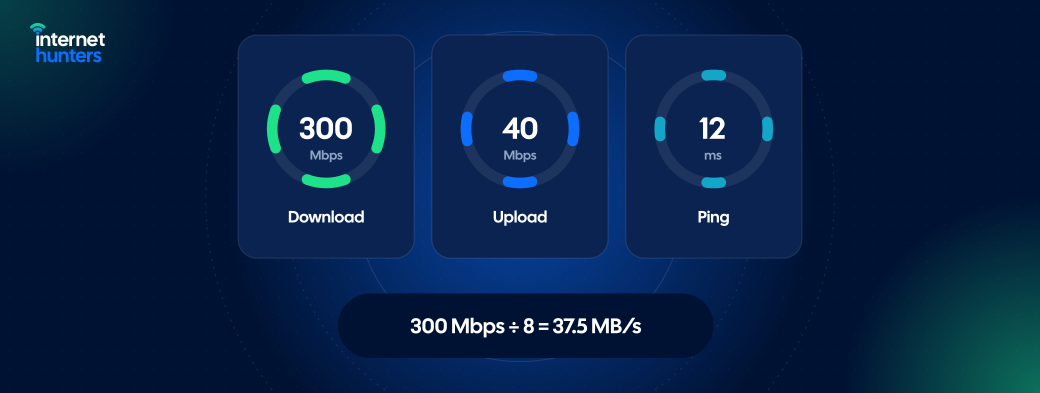
Speed tests report megabits per second (Mbps). Download managers often show megabytes per second (MB/s). Divide Mbps by eight to convert: 400 Mbps is about 50 MB/s.
Gigabit Plans
On a 1 Gbps plan, wired results somewhat below 1,000 Mbps are normal because of network overhead. Your device and cables also need to support gigabit speeds.
5. Use Wired and Wi-Fi Results to Find the Problem
Run one wired test and one Wi-Fi test in the room where you have trouble, then compare:
| Result Pattern | Likely Cause | Next Step |
|---|---|---|
| Wired is good, Wi-Fi is poor | Home Wi-Fi coverage or interference | See our Why Is My Wi-Fi Slow? guide |
| Both are poor at all times | Plan, line or provider equipment | Restart equipment, then contact your provider |
| Both drop mainly in evenings | Network congestion | Track results and report the pattern |
| Speeds are fine but latency jumps under load | Congestion inside your home network | Check router traffic-management settings |
| Only one device is slow | Device age, settings or software | Update or test with another device |
6. Keep a Simple Record
If you plan to contact your provider, note the date, time, connection type (wired or Wi-Fi), device and results for each test. Screenshots work well. A week of consistent records makes a more convincing case than a single test.
Turn Your Results Into Better Decisions
A well-run speed test tells you where to look: your plan, your equipment or your Wi-Fi. That can save you from paying for an upgrade you don't need or help you show your provider a real problem.
Internet Hunters helps you understand how your connection works and how to get more from it. Explore our guides to troubleshoot, compare and manage your home internet.
Frequently Asked Questions
Why does my speed test show less than I pay for?
Wi-Fi limits, older devices, other household traffic and peak-time congestion can all lower results. Test over a wired connection before assuming the plan is underperforming.
Why do different speed tests give different results?
Each tool uses different servers and methods. Use the same tool consistently for comparisons.
What is a good ping?
Lower is better. Consistent, low latency matters more than any single number, especially for gaming and video calls.
Should I test on my phone?
Phone tests show your Wi-Fi experience in that spot, which is useful. For checking your plan, use a wired computer.
How often should I run speed tests?
Only when you have a reason to. When you're tracking a problem, test a few times a day for several days.


