



Internet Hunters is not affiliated with any internet provider mentioned in this article. Our information is independent, unbiased, and research-based, but prices and availability change, so confirm details with the provider before signing up.
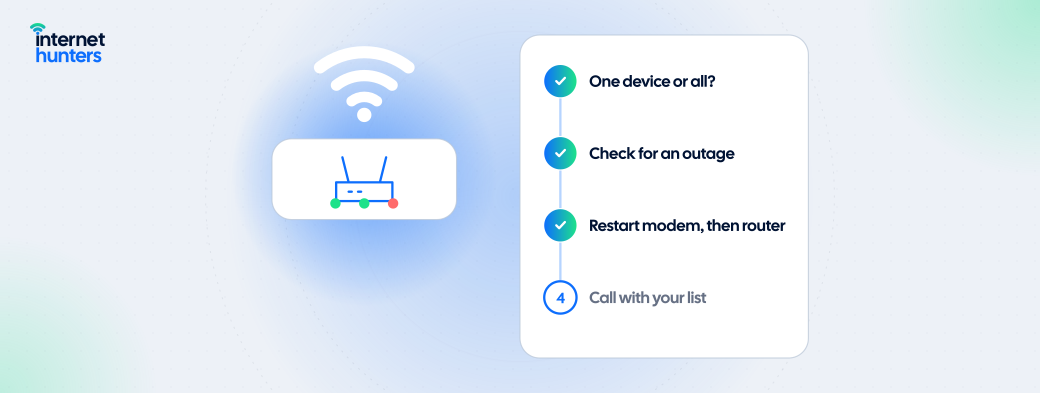
When the internet suddenly stops working, the urge is to call your provider right away or start pressing the buttons. A few quick checks usually tell you whether the problem is a wider outage, your equipment or a single device. Doing them in the right order can get you back online faster.
This guide walks through those first checks. It covers what your modem lights may be telling you and how to restart equipment safely. It also explains what to be ready if you need to contact your provider.
Is It Everything, or Just One Device?
Start by narrowing down the scope:
- One Device is Offline: The problem is probably that device's settings or connection.
- All Wi-Fi Devices are Offline, But a Wired Device Works: The router or Wi-Fi is the likely cause.
- Every Device is Offline, Wired and Wireless: The modem, the line or a provider outage is more likely.
- Wi-Fi Shows "Connected" But Nothing Loads: Your devices reach the router, but the router isn't reaching the internet.
1. Check for a Provider Outage
Switch your phone to mobile data and check your provider's app or service status page. Most large providers offer one. For example, Xfinity customers can check for outages through the Status Center in My Account or on an outage map. Independent outage trackers and local community groups can also show whether neighbors are affected.
If there's a confirmed outage, there's usually nothing to fix at home. Avoid factory resetting your equipment, and check back for the estimated repair time.
2. Look at the Lights
Most modems and gateways have lights for power, connection to the provider and Wi-Fi. Solid lights generally mean normal operation. Blinking, red or amber lights often signal that the device is still trying to connect or has lost its signal. Meanings vary by model, so check your device's manual or your provider's support page.
3. Restart in the Right Order
A restart clears many temporary glitches:
- Unplug the power from your modem and router (or your single gateway).
- Wait 30 to 60 seconds.
- Plug the modem back in and wait until its connection light is steady, which can take several minutes.
- Plug the router back in and give it a minute or two.
- Test the connection on one device.
Restart Vs. Reset
A restart (power cycle) is safe. A factory reset, usually done by holding a small reset button, erases your settings, including your Wi-Fi name and password. Only reset if your provider recommends it.
4. Check Cables, Power and Connections
- Coaxial Cable: Make sure it's tight at both the wall outlet and the modem.
- Fiber: Check that the fiber cable to the terminal isn't bent sharply or loose. Don't unplug it unless your provider tells you to.
- Ethernet: Reseat the cable between the modem and router.
- Power: Confirm the outlet or power strip works, and check any battery backup unit connected to fiber equipment.
- 5G Home Internet: Check the gateway's signal indicator. Moving it closer to a window may help.
5. Test With One Device on a Wired Connection
Connect a computer directly to the modem or gateway with an Ethernet cable. If the internet works this way, the problem is likely your router or Wi-Fi. If it doesn't, the issue is probably the modem, the line or the provider's service.
6. Rule Out Account Issues
Service can stop because of a missed payment, an expired card on autopay or a recent account change. Check your account in the provider's app before spending time on equipment.
7. When to Contact Your Provider
Contact your provider if there's no reported outage and the modem still can't connect after a restart and cable checks. Have this ready:
- Your account number and service address.
- What the modem lights show.
- What you've already tried.
- When the problem started and whether it happens repeatedly.
Ask for a ticket or reference number. If the outage lasts a long time, ask whether your account qualifies for a service credit.
Quick Reference: Symptom, Cause, First Step
| Symptom | Most Likely Cause | First Step |
|---|---|---|
| No lights on modem | Power issue | Check outlet, power strip and adapter |
| Modem's connection light blinking or red | No signal from provider | Check for outages, then cables |
| Modem fine, Wi-Fi devices offline | Router or Wi-Fi issue | Restart router, test wired |
| Only one device offline | Device issue | Restart the device, forget and rejoin Wi-Fi |
| Connection keeps dropping | Equipment, wiring or line problem | Track times, then contact provider |
Stay Connected During an Outage
Your phone's hotspot can cover essentials such as work or school, but watch your mobile data allowance. If you use public Wi-Fi, avoid sensitive tasks unless you're on an encrypted connection. Our guide to How to Secure Your Home Wi-Fi covers related security basics.
Get Back Online With Fewer Guesses
Most outages fall into a few patterns, and a few minutes of checking can tell you which one you're dealing with. That makes any call to your provider shorter and more productive.
Internet Hunters explains how home internet works and how to manage it. Explore our guides for help with troubleshooting, equipment and choosing the right service.
Frequently Asked Questions
How long should I unplug my modem?
About 30 to 60 seconds is usually enough before plugging it back in.
What's the difference between restarting and resetting a router?
Restarting turns the device off and on and keeps your settings. Resetting returns it to factory settings and erases them.
Why does my Wi-Fi say connected but the internet doesn't work?
Your device is talking to the router, but the router isn't getting a connection from the modem or the provider.
Can I get a credit for an internet outage?
Some providers offer credits for extended outages. Ask your provider what its policy is.
What if my internet keeps dropping?
Record when it happens and test with a wired connection. Repeated drops often point to equipment, wiring or line problems your provider needs to check.


